
Last Updated: July 2026
A break glass account in Active Directory is a dedicated, rarely used administrative identity kept in reserve for emergencies. It sits in a hardened Tier 0 OU, uses a long random password stored under dual control, and is touched only when normal admin access genuinely fails — a lockout, a directory recovery event, or an active security incident.
In this guide:
- What Is a Break Glass Account in Active Directory?
- Why You Need One: Real Scenarios
- Break Glass Account vs. the Built-In Administrator
- What Permissions Should It Have?
- Step-by-Step: Creating and Hardening the Account
- How to Set a Strong Break Glass Password
- Fine-Grained Password Policy for the Account
- How to Store the Password Securely
- How Often to Rotate the Password
- Monitoring and Alerting on Usage
- When Should You Actually Use It?
- Testing Your Break Glass Process
- Common Mistakes to Avoid
- Frequently Asked Questions
What Is a Break Glass Account in Active Directory?
A break glass account in Active Directory is not just another admin login. Instead, it’s a purpose-built identity that stays dormant until a genuine emergency happens. Because it’s rarely used, any activity on it is inherently suspicious.
Unlike your daily-driver admin accounts, this account skips normal workflows like ticket-based elevation or PIM activation. In my testing across several hybrid environments, the accounts that fail during a real incident are almost always the ones treated as “just another service account” instead of a hardened, separate control.
A true break glass account has four defining traits. First, it’s excluded from routine administrative rotation — nobody uses it Monday through Friday. Second, it’s hardened against the very failure modes it’s meant to survive, such as lockout policies or Kerberos issues. Third, its password lives under dual control, never with a single person. Fourth, any use of it triggers an alert, because the expected baseline is zero activity.
This matters because Active Directory still underpins identity for most hybrid organizations, even as workloads shift to Microsoft Entra ID. When Entra Connect, AD FS, or your primary domain admin credentials fail, a well-built break glass account is often the only path back into the directory.
Break Glass Account vs. Emergency Access Account — Same Idea, Different Layer
The term “break glass” comes from physical safety systems — you break the glass to pull the fire alarm. Microsoft uses “emergency access account” for the Entra ID cloud equivalent, while “break glass account” is the more common term for the on-premises AD version. Both serve the same purpose: guaranteed recovery access when everything else fails.
Why You Need One: Real Scenarios
Every organization eventually hits a moment where normal admin access disappears. Here’s when a break glass account earns its keep:
- GPO misconfiguration locks out admins. A poorly tested Group Policy change can accidentally deny logon rights to your entire Domain Admins group.
- Account lockout policy traps your team. A brute-force attack or a mistyped password storm can lock every privileged account at once.
- AD FS or federation goes down. If your identity provider fails, admins who rely on federated sign-in can’t authenticate at all.
- A security incident disables standard credentials. During ransomware response, teams often disable every known admin account before rebuilding trust — a pattern we cover in our Top 10 Active Directory Attack Methods guide.
- Directory Services Restore Mode recovery is required. Some forest recovery scenarios need a separate, verified path into the domain.
- The last known-good admin leaves the organization. Offboarding gaps happen, and a break glass account prevents a total lockout.
A common mistake I see is treating this list as theoretical. In our environment, a single mistyped fine-grained password policy locked out three Tier 0 admins simultaneously — the kind of incident this account exists to solve. Therefore, the real question isn’t whether you’ll need one. It’s whether it will actually work when you do.
Break Glass Account vs. the Built-In Administrator
Many admins assume the built-in Administrator account (RID 500) already is their break glass account. That assumption is risky, and here’s why.
The built-in Administrator’s security identifier always ends in -500, on every single Active Directory domain in the world. As a result, it’s one of the first accounts an attacker targets during an AD compromise attempt, since its existence and RID never change.
By default, RID 500 is exempt from account lockout — but only because a setting called “Allow Administrator account lockout” is disabled out of the box. If that policy is ever toggled on, intentionally or by a security baseline import, your fallback account can suddenly lock itself out. Microsoft also confirms this account is always exempt from authentication policies and silos, which sounds convenient until you realize it also can’t be governed the same way as everything else you’re tiering.
Quick Comparison
| Aspect | Built-in Administrator (RID 500) | Dedicated Break Glass Account |
|---|---|---|
| SID predictability | Always ends in -500, same on every domain | Custom SID, unknown to attackers |
| Lockout behavior | Exempt only while “Allow Administrator account lockout” stays disabled | Exempt via a fine-grained password policy you control |
| Auditing clarity | Actions blend with legacy/default account noise | Any logon is inherently suspicious (zero baseline) |
| Renaming/disabling | Often renamed/disabled by hardening baselines, adding confusion mid-emergency | Purpose-built, always enabled but tightly restricted |
| Attack surface | Frequently targeted first in AD attacks | Not documented anywhere an attacker would look |
For this reason, a dedicated, custom-named break glass account is the safer design. It gives you a predictable, testable, fully governed identity — one that isn’t the first line in every AD hardening guide an attacker might read, including our own backdoor removal walkthrough.
What Permissions Should It Have?
Getting permissions right is the difference between a working safety net and a liability. Here’s exactly what a break glass account needs — and doesn’t.
Group Membership and Tier 0 Placement
The account should belong to Domain Admins for domain-level recovery, or Enterprise Admins if you need forest-wide recovery authority. Place it in a dedicated Tier 0 organizational unit, separate from regular admin accounts, and block GPO inheritance except for the specific hardening policy built for it.
This mirrors the tiered administration model we cover in depth in our Active Directory tiered administration guide: Tier 0 assets get the strictest isolation, and a break glass account is arguably the most sensitive Tier 0 asset you have.

Logon Rights Restrictions
Because of this sensitivity, restrict where the account can log on. Apply these user rights through a GPO scoped only to the Break-Glass OU:
- Deny access to this computer from the network (blocks remote/SMB-based use)
- Deny log on through Remote Desktop Services (blocks RDP abuse)
- Deny log on as a batch job and Deny log on as a service (blocks scripted or scheduled misuse)
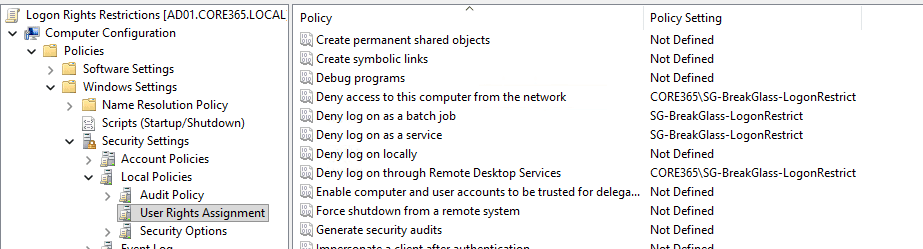
Then, restrict the account’s “Log on to” attribute so it can only authenticate at your domain controllers. As a result, even a leaked password becomes far less useful to an attacker without physical or console access to a DC.
Should You Use the Protected Users Group?
This is where I see the most confusion. Protected Users is a strong hardening tool, but it forces Kerberos-only authentication with AES, blocks NTLM entirely, and caps the Kerberos ticket lifetime at a nonrenewable four hours. Microsoft explicitly warns that adding highly privileged accounts to Protected Users without testing can accidentally lock them out.
Since a break glass account might be needed during exactly the kind of Kerberos or DC health problem Protected Users assumes is fine, I generally recommend leaving it out of that group for this one specific account. Instead, rely on the fine-grained password policy and logon restrictions covered next.
Step-by-Step: Creating and Hardening the Account
Here’s the build process I follow, end to end.
- Create a dedicated Tier 0 OU (for example,
OU=Break-Glass,OU=Tier0) with inheritance blocked. - Create the account with a non-obvious name — avoid anything containing “admin,” “emergency,” or “breakglass” in production, since that defeats the obscurity benefit.
- Add it to Domain Admins (or Enterprise Admins, if needed).
- Apply the logon-restriction GPO described above, scoped only to this OU.
- Build and link a fine-grained password policy (covered next).
- Set an initial long random password, then immediately move it into secure storage.
- Document the account in your break-glass runbook, including who is authorized to retrieve it.
- Configure monitoring so any logon, password change, or group change fires a high-priority alert.
A sanitized PowerShell example for steps 2-3:
New-ADUser -Name “BG-Recovery01” `
-SamAccountName “bg-recovery01” `
-Path “OU=Break-Glass,OU=Tier0,DC=corp,DC=example,DC=com” `
-AccountPassword (Read-Host -AsSecureString “Enter temporary password”) `
-Enabled $true `
-PasswordNeverExpires $true `
-CannotChangePassword $false
Add-ADGroupMember -Identity “Domain Admins” -Members “bg-recovery01”
Once created, the account moves through a repeatable lifecycle: harden and create it, vault the password under dual control, monitor continuously, wait for a verified emergency, use it under controlled two-person retrieval, then force-rotate the password and review before re-vaulting. The diagram below shows this cycle.
1. Harden & CreateTier 0 OU, custom SID2. Vault the PasswordDual control, PAM, or safe3. Monitor ContinuouslyAlert on any activity4. Verified EmergencyLockout, DC recovery, incident5. Controlled UseTwo-person retrieval, logged6. Rotate & ReviewImmediate reset, post-incidentRe-vault after every use
In short: create it once, harden it thoroughly, then let it sit untouched until a verified emergency calls for it.
How to Set a Strong Break Glass Password
Length matters more than cleverness here. Aim for at least 25-30 random characters, generated by a password manager or PowerShell, never typed by hand.
Microsoft’s own emergency access account guidance for Microsoft Entra ID — the cloud equivalent of this account — recommends 32 or more random characters for exactly this scenario. The same standard translates well to an on-premises Active Directory break glass account, since the goal is identical: a password nobody can guess, phish, or brute-force in a realistic timeframe.
Avoid passphrases built from dictionary words, even long ones, since password-cracking tools increasingly target those patterns. Instead, generate something like a 30-character string mixing uppercase, lowercase, numbers, and symbols, using a tool such as [System.Web.Security.Membership]::GeneratePassword() in PowerShell or a dedicated PAM vault’s built-in generator.
Once generated, the password should never be typed from memory, saved in a password-protected spreadsheet, or emailed, even internally. Its very first use after generation should be moving it straight into secure storage, which we cover next.
Fine-Grained Password Policy for the Account
A Fine-Grained Password Policy (FGPP), also called a Password Settings Object (PSO), lets you apply different password and lockout rules to specific accounts without touching your Default Domain Policy. This is exactly the tool you need for a break glass account.
Create the PSO through Active Directory Administrative Center’s Password Settings Container, or with PowerShell:
New-ADFineGrainedPasswordPolicy -Name "PSO-BreakGlass" `
  -Precedence 1 `
  -MinPasswordLength 30 `
  -PasswordHistoryCount 24 `
  -LockoutThreshold 0 `
  -ComplexityEnabled $true `
  -ReversibleEncryptionEnabled $false

Add-ADFineGrainedPasswordPolicySubject -Identity "PSO-BreakGlass" -Subjects "bg-recovery01"
Precedence controls priority when multiple PSOs could apply — lower numbers win, so setting it to 1 keeps this policy authoritative. For full configuration steps, Microsoft’s fine-grained password policy documentation walks through both the ADAC and PowerShell paths in detail.
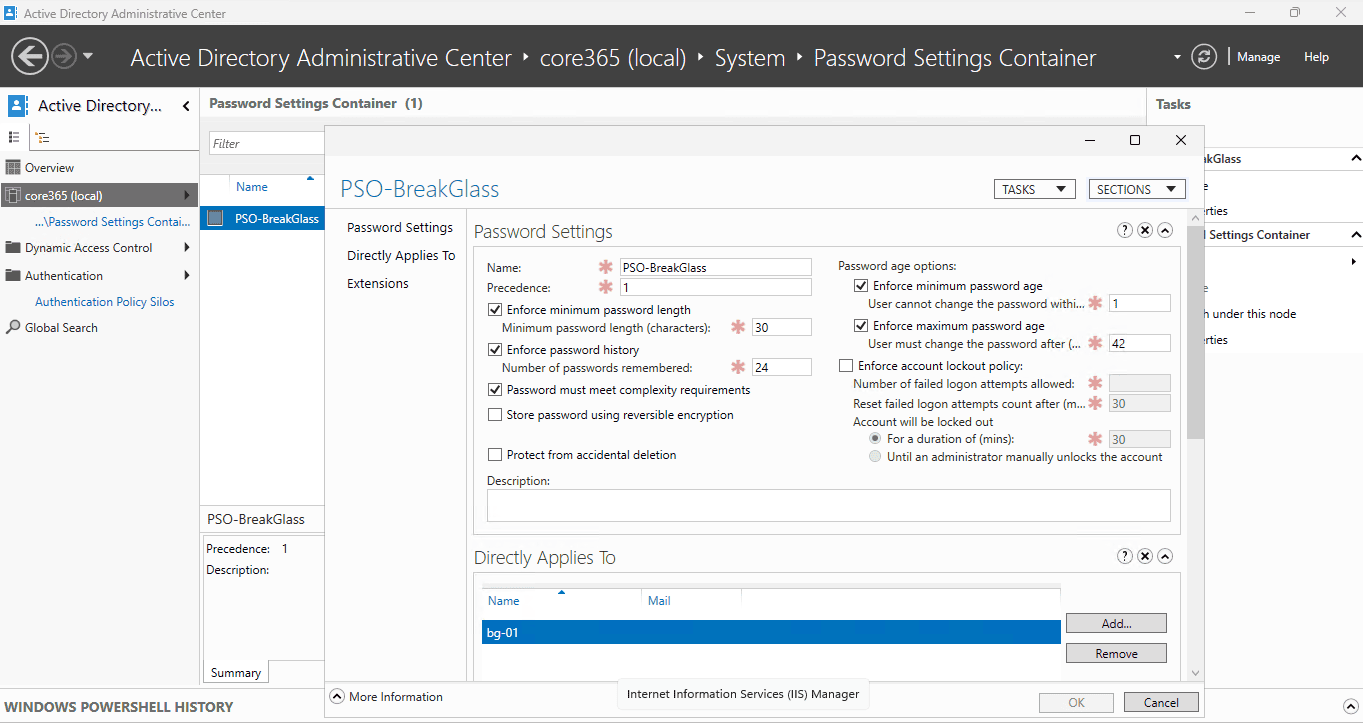
Navigate to System → Password Settings Container
Double-click PSO-BreakGlass to see all settings in the Properties dialog
Under Directly Applies To, confirm bg-01 is listed
Key PSO Settings to Get Right
| Setting | Recommended Value | Why It Matters |
|---|---|---|
| Group membership | Domain Admins (or Enterprise Admins for forest recovery) | Matches the access level an emergency actually requires |
| OU placement | Dedicated Tier 0 “Break-Glass” OU, inheritance blocked | Keeps normal GPOs from interfering, centralizes control |
| Logon restriction | “Log on to” limited to domain controllers only | Prevents credential use from a compromised workstation |
| Denied logon types | Deny network, RDP, batch, and service logon | Blocks remote and automated abuse of the credential |
| Password never expires | Enabled, paired with mandatory manual rotation after use | Prevents a forced-expiry lockout mid-emergency |
| Protected Users membership | Not recommended | 4-hour nonrenewable TGT and no NTLM fallback can work against you mid-incident |
| Smart card required | Disabled | A physical card can become a second point of failure during a real emergency |
Setting LockoutThreshold to 0 means the account is never locked out through failed attempts. Since this removes a denial-of-service vector, pair it with the logon restrictions from the permissions section, so a leaked password still can’t be used from an arbitrary machine.
How to Store the Password Securely
Storage is where most break glass processes quietly fail. A perfect 30-character password is worthless if it’s sitting in a shared spreadsheet three people can edit.
Dual Control Is Non-Negotiable
The core principle is dual control: no single person should be able to retrieve and use the password alone. Split-knowledge achieves this simply — one custodian holds the first half of the password, a second custodian holds the other half, and both must be present to reconstruct it.
| Storage Method | Security Level | Best For |
|---|---|---|
| Sealed envelope in a physical safe | High, with dual custody | Smaller environments without a PAM tool |
| Split-knowledge (two halves, two custodians) | High | Adding human-process control on top of any storage method |
| PAM/secrets vault (CyberArk, HashiCorp Vault, Azure Key Vault) | Very high | Environments already running a privileged access management platform |
| Encrypted offline USB/HSM in a locked cabinet | Medium-high | Air-gapped backup to a digital vault |
| Plaintext document, email, or ticket | Unacceptable | Never — this defeats the entire purpose of the control |
If your organization already runs a PAM platform, this is the natural home for a break glass credential, since it adds automatic checkout logging and time-boxed access on top of dual control. If not, a sealed envelope in a fire-rated safe, combined with split-knowledge, is a legitimate and auditable alternative — and it’s what I recommend for smaller environments without a vault.
Regardless of method, document the retrieval procedure in writing: who can request access, who must approve it, and how the request itself gets logged. A common mistake I see is skipping this documentation step, which turns a good technical control into a confusing scramble during an actual emergency.
How Often to Rotate the Password
Two rotation triggers apply here, and both matter.
First, rotate the password immediately after every use, without exception. Consequently, even if the credential was exposed or observed during the emergency, it stops being valid the moment the incident closes.
Second, review and re-validate the credential on a fixed schedule even if it’s never used. Microsoft’s guidance for the equivalent cloud emergency access accounts recommends revalidating at least every 90 days, and after any change in the IT staff authorized to retrieve it. The same cadence works well for an on-premises break glass account.
Every rotation should follow the same checklist: generate a new random password through the method described earlier, update it in Active Directory, re-seal or re-vault it immediately, and log the rotation with a timestamp and reason. Skipping the logging step is a common mistake, since it leaves you unable to prove when the credential last changed during an audit.
Monitoring and Alerting on Usage
Because this account should see zero activity under normal conditions, monitoring is simple in concept: anything at all is worth investigating.
| Event ID | Meaning | Action |
|---|---|---|
| 4624 | Successful logon | Immediate high-priority alert; baseline should be zero |
| 4625 | Failed logon attempt | Alert and investigate source immediately |
| 4738 | User account changed (incl. password reset) | Confirm the change was authorized and documented |
| 4728 / 4732 / 4756 | Account added to a privileged group | Verify against your change record instantly |
| 4720 | New user account created | Investigate if it unexpectedly references this account’s name |
Forward these events to your SIEM or a scheduled PowerShell alert script, and treat any hit as high-priority, regardless of the hour. In our environment, we route these specific event IDs through a dedicated alert channel separate from general AD monitoring noise, precisely because a single false negative here is far more costly than a false positive.
When Should You Actually Use It?
Use the break glass account only when normal administrative access has genuinely failed. That’s the entire test.
- Use it when: every normal Tier 0 admin account is locked out; a directory recovery or authoritative restore requires guaranteed access; an active security incident has disabled or compromised standard credentials; or you’re running a scheduled fire drill (covered next).
- Don’t use it when: a single admin forgot their password (use normal self-service tools instead); you need routine elevated access for a maintenance task; or it’s simply more convenient than requesting proper access.
If your organization has self-service unlock tooling in place, like the one we walked through in Building a Secure Self-Service Admin Account Unlock Tool, that’s almost always the correct first step before reaching for a break glass account. Reserve this account for scenarios where that tooling itself is unavailable or insufficient.
Testing Your Break Glass Process
An untested break glass account is a false sense of security. Schedule a fire drill at least twice a year, and treat it as seriously as a disaster recovery test.
During the drill, verify three things: the password can actually be retrieved through your documented process, the account still authenticates successfully, and your monitoring alert actually fires the moment it’s used. If any of these three fail, you’ve just found a gap before a real emergency did.
After the drill, rotate the password immediately, since a test use is still a use, and document the results, including timing, so you can improve the process next round.
Common Mistakes to Avoid
- Reusing the built-in Administrator account instead of building a dedicated identity.
- Storing the password in a shared spreadsheet or password manager without dual control.
- Forgetting to rotate after use, leaving a potentially exposed credential active.
- Adding the account to Protected Users without testing the Kerberos and NTLM impact first.
- Never testing the process, only discovering gaps during a real incident.
- Confusing this account with LAPS-managed local admin passwords. LAPS (see our Microsoft LAPS setup guide) solves local administrator passwords per machine, not domain-level emergency access.
Note: This guide covers on-premises Active Directory. If your organization is hybrid or cloud-first, Microsoft Entra ID has its own emergency access account concept, using Conditional Access exclusions instead of GPO-based logon restrictions. See Microsoft’s emergency access accounts guidance for the cloud-side equivalent.
Frequently Asked Questions
What is a break glass account in Active Directory?
A break glass account in Active Directory is a dedicated, rarely used administrative identity kept in reserve for emergencies. It sits in a hardened Tier 0 OU, uses a long random password under dual control, and is used only when normal admin access fails.
Why do organizations need a break glass account?
Organizations need one because normal admin accounts can become unusable during lockouts, GPO misconfigurations, AD FS outages, or active security incidents. A separate, hardened identity guarantees recovery access when every other path is blocked.
Should the break glass account use the built-in Administrator (RID 500)?
No. The built-in Administrator is a well-known, predictable target because its SID never changes. A dedicated, custom-named account with equivalent rights is safer, since attackers can’t pre-target an account they don’t know exists.
What group should the break glass account belong to?
It should belong to Domain Admins, or Enterprise Admins for forest-wide recovery, placed in a dedicated Tier 0 OU. Avoid nesting it in broad groups like local Administrators, which widens its blast radius unnecessarily.
Should the break glass account be a member of Protected Users?
Generally, no. Protected Users forces a 4-hour non-renewable Kerberos ticket, blocks NTLM fallback, and prevents delegation. Since this account may be needed exactly when Kerberos or DCs are unhealthy, those restrictions can work against you.
How long should the break glass account password be?
Use at least 25-30 random characters. Microsoft’s own emergency access guidance for cloud break glass accounts recommends 32-plus characters, and the same standard applies well to an on-premises Active Directory account.
Where should the break glass password be stored?
Store it under dual control: split into two parts held by different trusted individuals, sealed in a physical safe, or held in a PAM vault with mandatory approval and checkout logging. Never store it in plaintext, email, or a ticket.
How often should you rotate the break glass password?
Rotate it immediately after every use, without exception. As a result, even if the credential was exposed during an incident, it stops being valid the moment the emergency ends. Also revalidate it at least every 90 days even if unused.
Can the break glass account log on from any computer?
No. Restrict it with “Deny log on through Remote Desktop Services,” “Deny access to this computer from the network,” and similar user rights so it can only authenticate interactively at a domain controller console.
What events should trigger monitoring alerts for this account?
Any successful logon (4624), failed logon (4625), password change (4738), or group membership change involving this account should trigger an immediate high-priority alert, since baseline usage should always be zero.
When should IT staff actually use the break glass account?
Use it only for verified emergencies: all normal admin accounts are locked out, a directory recovery operation is underway, or an active security incident has disabled standard credentials. It’s not a shortcut for routine work.
How often should you test the break glass process?
Test it at least twice a year through a scheduled, documented fire drill. This confirms the password is retrievable, the account still authenticates, and monitoring alerts actually fire the moment it’s used.
What’s the difference between a break glass account and a honeytoken account?
A break glass account is meant to be used during genuine emergencies. A honeytoken account is never meant to be used at all — any activity on it is treated as a certain compromise indicator.

Antonio Rennvick is an IT Infrastructure Manager with 15+ years running enterprise Active Directory, Microsoft 365, and Azure environments. He’s Microsoft certified (AZ-104, MS-102) and writes Core365 Cloud to share what actually works in production—PowerShell automation, AD deep dives, and security hardening drawn from real-world work, not test labs.