
Last Updated: July 2026
Azure Communication Services (ACS) Email is a send-only SMTP and API relay from Microsoft, built for any application that needs to send authenticated outbound mail — OTP codes, security alerts, scan-to-email jobs, system notifications, or a WordPress newsletter. It’s a strong fit if you’re already on Azure and send low-to-moderate volume, but it has no marketing features, no dedicated IP, and reputation issues can’t be manually reset by support. This guide covers real use cases, the full setup, security steps, and an honest breakdown of when it’s worth using.
In this article:
What Azure Communication Services Email actually is
Azure Communication Services (ACS) Email is Microsoft’s send-only email infrastructure. It’s built for any application, script, or platform that needs to send transactional or bulk email using proper authentication — SPF, DKIM, DMARC — on Microsoft’s sending infrastructure, rather than an unauthenticated mail server with no reputation behind it.
It is not a mailbox service. There’s no inbox, no webmail, no way to receive mail through it. It only handles outbound delivery, connecting to your application through a REST API/SDK or, more simply, through standard SMTP that any platform can talk to.
In our own testing, this distinction matters immediately: ACS sends perfectly, but if anything bounces or a recipient replies, that traffic has to land somewhere else — which is why the setup later in this guide also touches your regular DNS, not just Azure.
Common use cases
Because ACS is just an authenticated SMTP/API endpoint, almost anything that can send an email can use it. The most common scenarios we see:
Scan-to-email from printers and MFPs
Office printers and multi-function devices often send scanned documents via SMTP, and many organizations still point that at an internal relay with no authentication — an easy blocklist target. Pointing the scanner’s SMTP settings at ACS instead gives every scanned document a properly authenticated sending path.
OTP and 2FA codes
One-time passcodes are time-sensitive — landing in spam even occasionally causes real support tickets. ACS’s authenticated domain and delivery analytics make it easier to catch and diagnose OTP delivery problems before users complain.
System and security alerts
Monitoring tools, backup jobs, certificate expiry warnings, and security notifications are exactly the “must arrive” category of mail that benefits from a dedicated, authenticated sending path instead of relying on a shared server’s reputation.
Application and workflow notifications
Line-of-business apps, internal tools, Power Automate flows, and custom scripts frequently need to send status updates or approvals by email. ACS’s REST API and SDKs plug directly into custom code without needing a full mail server.
Bulk newsletters (e.g. from WordPress)
This is the use case we tested ourselves: a WordPress blog sending a subscriber newsletter, where the shared hosting IP was blacklisted and bulk sending was capped. Any CMS or newsletter plugin that supports standard SMTP can route through ACS the same way.
Pros: what you get
| Benefit | Why it matters |
|---|---|
| No new vendor | If you already have an Azure subscription, there’s no new account, contract, or billing relationship to set up. |
| Pay-as-you-go pricing | No flat monthly subscription. You pay per email sent, which suits irregular or mixed workloads (alerts one day, a newsletter the next) better than a fixed-tier plan. |
| Native SPF/DKIM/DMARC support | Full sender authentication is built in for custom domains — the single biggest lever for inbox placement across every use case above. |
| Both SMTP and API access | SMTP suits legacy devices (scanners, CMS plugins); the REST API/SDK suits custom applications. One resource covers both. |
| Delivery analytics | The Insights dashboard logs message IDs, recipients, bounces, blocks, opens, and clicks — useful for chasing down a missing OTP email or a failed alert. |
| Multiple MailFrom addresses on one domain | One verified domain can serve several sender addresses (e.g. alerts@, otp@, newsletter@, scan@) without re-verifying each one. |
Cons: what you don’t get
| Limitation | Practical impact |
|---|---|
| No marketing features | No campaign builder, list management, or engagement dashboard for newsletter-style sending — you’ll need your own tool on top for that specific case. |
| Shared sending infrastructure | No dedicated IP option. Your domain’s reputation exists on shared Microsoft infrastructure alongside other tenants. |
| Reputation can’t be manually reset | If a receiving service scores your mail as spam, Microsoft support cannot override or re-evaluate it on request — including for time-sensitive OTP or alert mail. It only improves gradually. |
| Conservative default sending limits | New resources start on a low sending/throttling tier. Raising it means a support ticket, and approval can take up to 72 hours — worth planning for if OTP/alert delivery is time-critical. |
| Preview-status tooling | The Azure CLI communication extension is still marked preview, and some portal behavior (like a greyed-out “Add” button) is undocumented and inconsistent. |
| Smaller ecosystem | Fewer tutorials, community answers, and third-party integrations exist compared with SendGrid, Mailgun, or Amazon SES. |
When to use it — and when not to
ACS makes the most sense when your situation looks like this: an existing Azure subscription, a need to authenticate outbound mail properly, and low-to-moderate volume — whether that’s OTP codes, alerts, scan-to-email, or a newsletter.
| Situation | Recommendation |
|---|---|
| You already have an Azure subscription and send low/moderate volume across one or more use cases | Use ACS. Lowest friction, no new vendor, one resource for multiple sending needs. |
| You need scan-to-email or device SMTP relay with authentication | Use ACS. Point the device’s SMTP settings at it and skip maintaining an internal relay. |
| You want marketing analytics, A/B testing, or a visual campaign builder | Skip ACS for that workload. Use a dedicated ESP or newsletter plugin with those features, and keep ACS for transactional mail if you like. |
| You expect to scale into hundreds of thousands of emails/month | Compare against Amazon SES, typically cheaper at high volume with more mature bounce/complaint tooling. |
| OTP/2FA delivery is business-critical and split-second delays are unacceptable | Test thoroughly first. Confirm default sending limits and latency meet your needs before relying on it in production. |
Full setup guide (step-by-step)
Step 1 — Create an Email Communication Services (ECS) resource
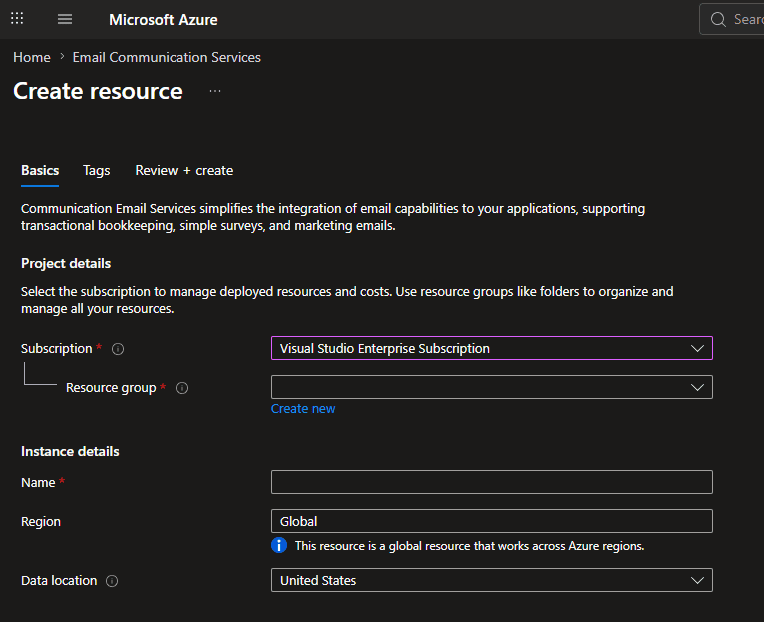
In the Azure Portal, search for Email Communication Services and create a new resource. Choose your subscription, a resource group, a name, and a data location close to your audience.
Step 2 — Verify your custom domain
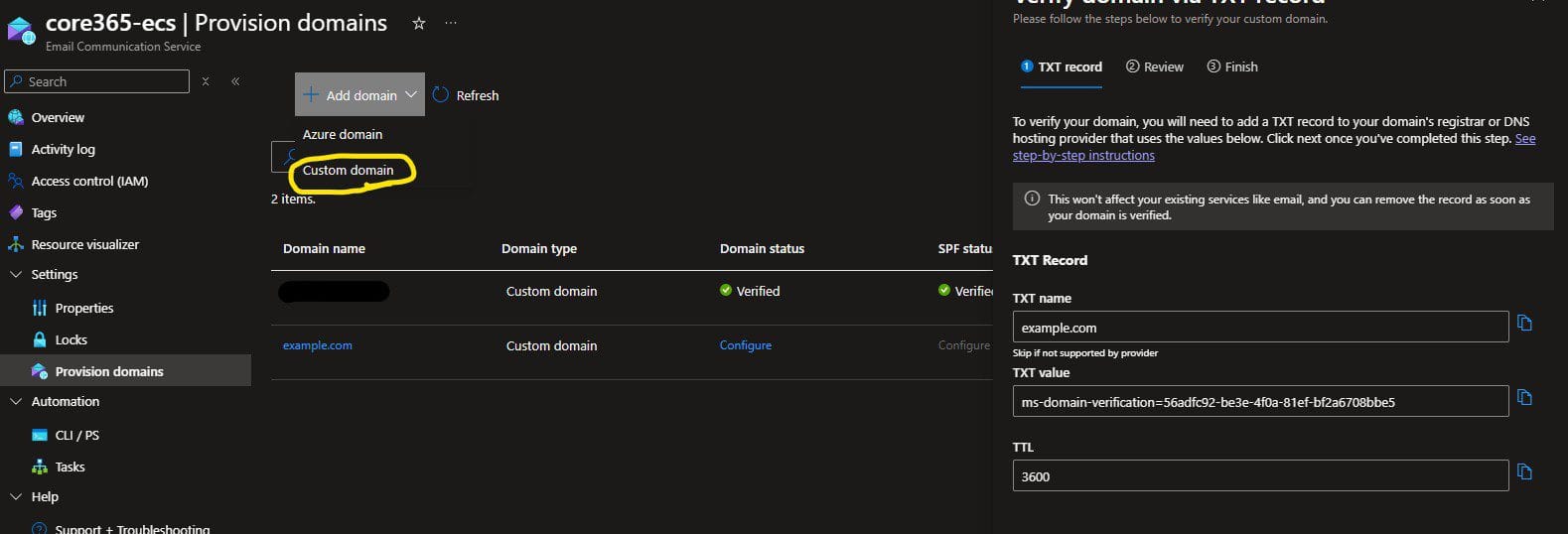
Under Settings → Provision Domains, add your domain and follow the TXT record verification flow. DNS changes typically take 15–30 minutes to propagate before verification succeeds.
Step 3 — Add SPF and DKIM records
Once the domain is verified, Azure provides SPF and DKIM records to add to your DNS. If you already have an SPF record, merge Azure’s include: into the existing one — a domain can only have one SPF record. DKIM is added as separate CNAME records and doesn’t conflict with SPF.
Step 4 — Add your MailFrom addresses
Under the verified domain, go to Email Services → MailFrom Addresses. A default DoNotReply@yourdomain.com address is created automatically. Add whatever additional sender addresses your use cases need — for example otp@, alerts@, scan@, or newsletter@ — since they all inherit the same domain-level authentication.
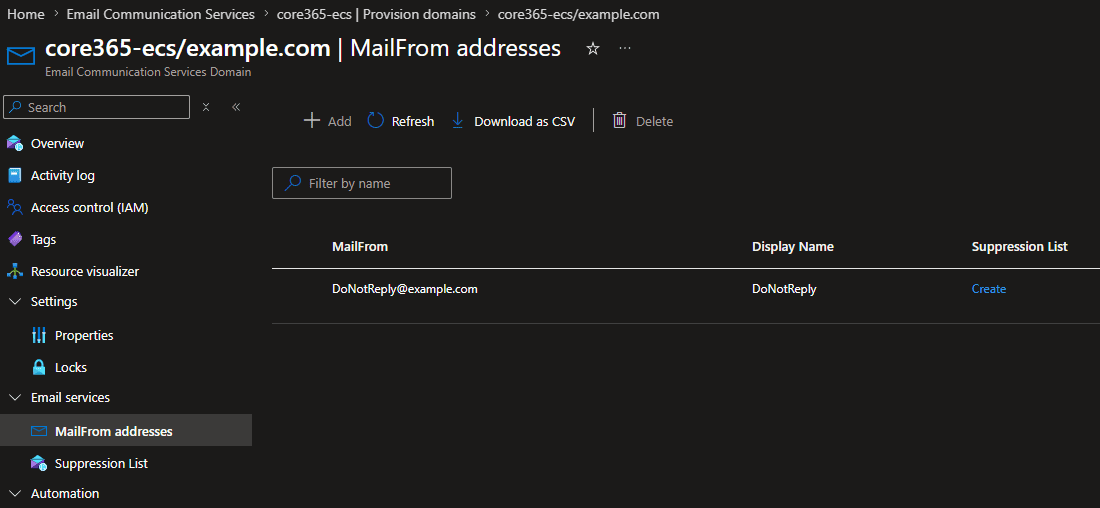
Known issue: the “Add” button here is sometimes greyed out even on a fully verified domain. See Troubleshooting below.
Step 5 — Create an Azure Communication Services (ACS) resource and connect the domain
Create a separate Communication Services resource, then under Email → Domains, connect it to the ECS domain you verified. This is the resource your application, device, or CMS will actually authenticate against — regardless of which use case you’re sending for.
Security: SMTP authentication properly explained
ACS doesn’t use a simple username/password for SMTP. It authenticates through a Microsoft Entra application — the same identity platform behind Microsoft 365 sign-in — a meaningfully stronger security model than a static password sitting in a config file, printer settings, or CMS plugin.
Register the Entra application
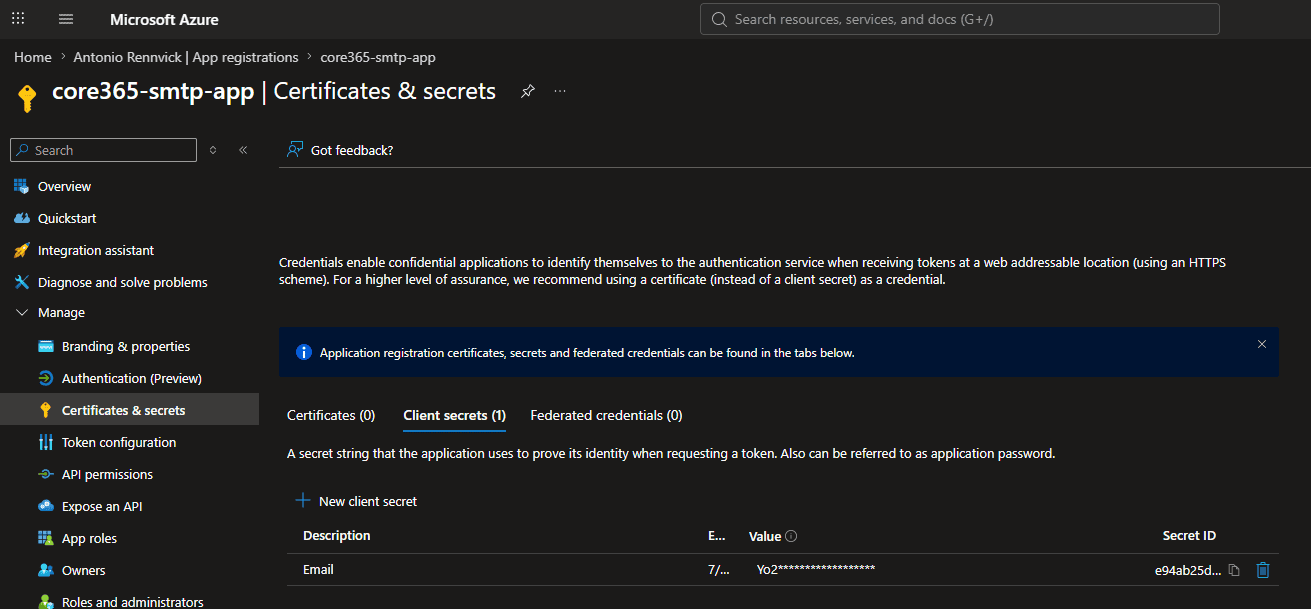
In App registrations, create a new app. Under Certificates & secrets, generate a client secret and copy its value immediately — it won’t be shown again, and it becomes your SMTP password.
Assign the correct role
On your ACS resource, open Access control (IAM) and assign the Communication and Email Service Owner role to the Entra app. Without this, the app has no permission to send.
Create the SMTP username
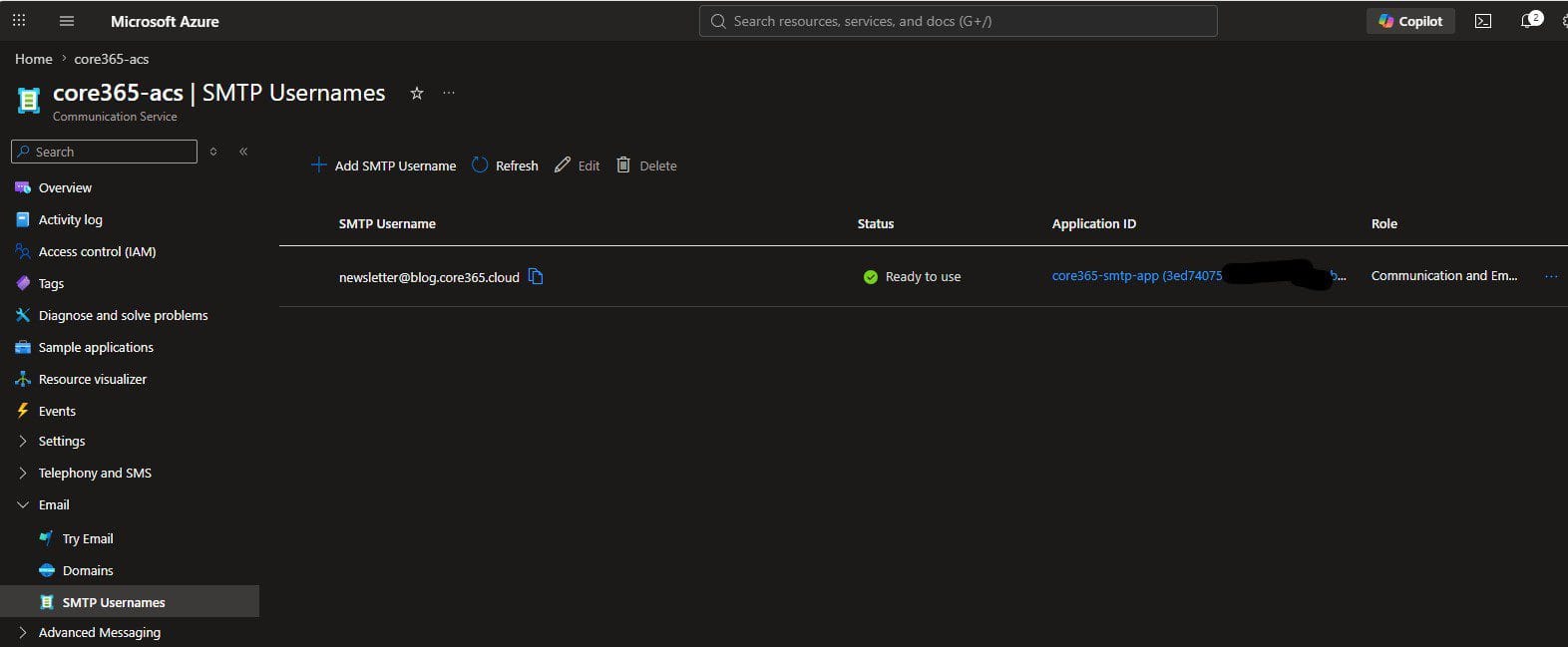
Under SMTP Usernames on the ACS resource, add a new username and link it to the Entra app. You can use a full email format (e.g. alerts@yourdomain.com) as long as it matches a verified domain. Status changes to Ready to use once everything lines up.
Your final SMTP settings
| Setting | Value |
|---|---|
| Server / Host | smtp.azurecomm.net |
| Port | 587 (recommended) or 25 |
| Encryption | STARTTLS / TLS 1.2+ |
| Username | Your SMTP username from the step above |
| Password | The Entra app’s client secret |
Enter these settings wherever your sending source supports generic SMTP — a WordPress plugin, a printer/MFP’s scan-to-email configuration, a monitoring tool’s alert settings, or a custom application’s mail configuration.
The MX record most people miss
ACS is send-only, which means bounces, delivery failures, and replies to your sending domain have nowhere to go unless you configure that separately. A domain that can’t receive any mail back is itself a spam signal to some filters — and it matters just as much for an OTP or alerts domain as it does for a newsletter domain.
Don’t use a “null MX” record here — that’s meant for domains that neither send nor receive mail, and is explicitly discouraged for a domain actively used as a sending address. Instead, set an actual MX record through wherever your DNS is hosted, and forward anything that arrives to a real inbox you check. This closes the loop and makes the domain look like the complete, legitimate setup that spam filters expect.
Troubleshooting common issues
| Issue | Likely cause | Fix |
|---|---|---|
| “Add” greyed out on MailFrom Addresses | Domain is on default sending/throttling limits, not a permissions issue | Add via Azure CLI (az communication email domain sender-username create) or request a quota increase via a support ticket |
| CLI error: DisallowedProvider for Microsoft.Communication | CLI is pointed at the wrong subscription, or that subscription has a policy blocking the provider | Run az account show and confirm it matches the resource’s subscription; switch with az account set |
| Test email lands in Junk despite SPF/DKIM/DMARC all passing | Brand-new sending domain with zero reputation — normal, not a config error | Mark as Not Junk, warm up gradually, strengthen DMARC policy over time |
Frequently Asked Questions
What can Azure Communication Services Email actually be used for?
Any authenticated outbound email need: OTP/2FA codes, system and security alerts, scan-to-email from printers, application notifications, and bulk sends like newsletters.
Is Azure Communication Services Email free?
No, it’s pay-as-you-go with no fixed monthly cost, but sending does incur a small per-email charge based on volume.
Can I receive email through Azure Communication Services?
No. ACS Email is send-only. Receiving mail requires a separate mailbox or forwarding setup through your DNS/hosting provider.
Can I use it for scan-to-email from office printers?
Yes. Point the printer or MFP’s SMTP configuration at ACS the same way you would any application, using the SMTP settings and credentials described in this guide.
Is it reliable enough for OTP and 2FA codes?
It can be, but test delivery speed and default sending limits for your expected volume first, since these codes are time-sensitive and reputation issues can’t be manually fixed on request.
Does it work with WordPress and other CMS platforms?
Yes, through any SMTP plugin like WP Mail SMTP or FluentSMTP using the generic “Other SMTP” option — no custom code required.
Why is my MailFrom “Add” button greyed out?
This is a known default sending-limit restriction, not a permissions problem. It can be bypassed via Azure CLI or resolved with a quota increase request.
Why did my first test email go to Junk?
New sending domains start with zero reputation at providers like Outlook, regardless of correct SPF/DKIM/DMARC. This resolves gradually with consistent, legitimate sending.
Do I need a Microsoft Entra app to use ACS SMTP?
Yes. SMTP authentication requires an Entra application with a client secret and the Communication and Email Service Owner role assigned.
Can I use multiple sender addresses on one domain?
Yes. Once a domain is verified, you can add multiple MailFrom addresses (e.g. otp@, alerts@, scan@, newsletter@) without re-verifying each one.
Is ACS better than SendGrid or Amazon SES?
Not universally. ACS wins on convenience if you’re already on Azure and sending modest volume. SendGrid offers more mature marketing features; SES is typically cheaper at very high volume with more mature bounce tooling.
Should I set a null MX record on my sending domain?
No. Null MX is meant for domains that never send mail either. A domain actively sending mail needs a real MX record so bounces have somewhere to go.
How long does domain verification take?
DNS propagation for the TXT verification record typically takes 15 to 30 minutes, though it can occasionally take longer depending on your DNS provider.

Antonio Rennvick is an IT Infrastructure Manager with 15+ years running enterprise Active Directory, Microsoft 365, and Azure environments. He’s Microsoft certified (AZ-104, MS-102) and writes Core365 Cloud to share what actually works in production—PowerShell automation, AD deep dives, and security hardening drawn from real-world work, not test labs.